
Microsoft Remote Desktop Connection
Microsoft
Screenshots
App details
- Version
- 10.3.8 | 8.0.0
- Updated
- May 23, 2023
- Requires
- Mac OS X
- Language
- English
- License
- Free
- Developer
- Microsoft
- Category
- Mac OS
SoftPas in:
This product is also available in the following languages:
About Microsoft Remote Desktop Connection
Download Microsoft Remote Desktop Connection – free, secure, cross‑platform remote access tool
Overview
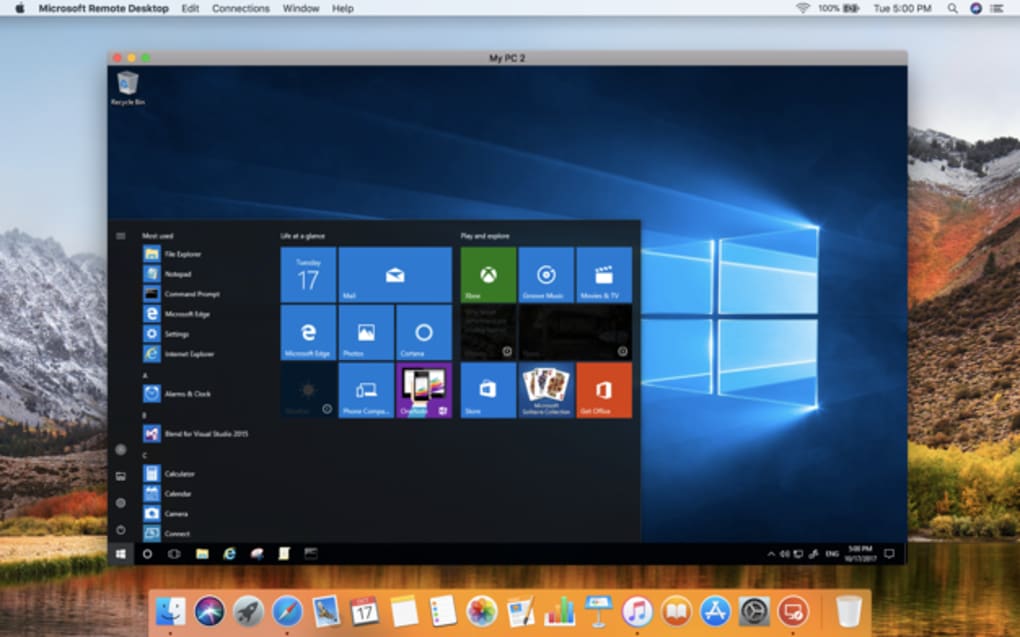
Microsoft Remote Desktop Connection (MRDC) is a free utility from Microsoft Corporation that lets you control Windows Professional, Enterprise, or Server machines directly from a macOS device. The app is designed for IT professionals, developers, and power users who need to access corporate resources, virtual desktops, or isolated workstations without being physically present. By leveraging the Remote Desktop Protocol (RDP) and Network Level Authentication (NLA), MRDC creates an encrypted tunnel that protects credentials and data in transit. The macOS client mirrors much of the functionality found in the native Windows client, offering support for high‑resolution displays, multi‑monitor spanning, audio‑video streaming, clipboard synchronization, and device redirection (including printers, drives, microphones, and cameras). Although the macOS version lacks a few advanced features present on Windows, it still provides a reliable gateway for remote work, especially when combined with a Remote Desktop Gateway or Azure Virtual Desktop services. Setting up a connection is straightforward: you simply enter the remote computer’s network name or IP address, supply your Windows credentials, and launch the session. As long as Remote Desktop Services are enabled on the host and the firewall permits RDP traffic, the connection is established within seconds. This makes MRDC an essential component of any modern, flexible workspace strategy.
Key Features
- Cross‑platform support: Native macOS client that connects to Windows 10/11 Professional, Enterprise, and Server editions.
- High‑resolution & multi‑monitor: Seamlessly scale to Retina displays and span sessions across multiple screens.
- Audio‑video streaming: Redirect sound and video from the remote PC to your Mac, enabling media playback and VoIP calls.
- Device redirection: Access local drives, printers, USB devices, microphones, and cameras from the remote session.
- Network Level Authentication (NLA): Adds an extra security layer by requiring authentication before establishing the RDP tunnel.
- Remote Desktop Gateway support: Connect securely through firewalls without exposing RDP ports to the Internet.
- Clipboard synchronization: Copy and paste text, images, and files between the local Mac and remote Windows desktop.
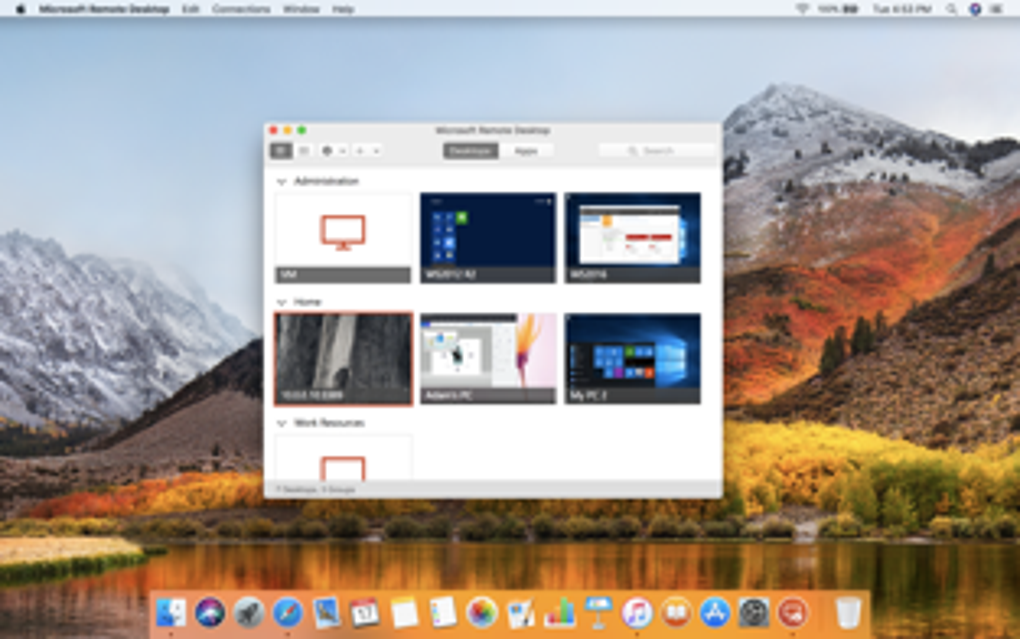
- Connection Center: Organize, edit, and delete saved connections from a single dashboard.
- Free of charge: No licensing fees for the macOS client; you only need a Windows license on the host.
- Regular updates: Microsoft pushes security patches and feature improvements through the Mac App Store.
Installation & Usage Instructions
Getting started with Microsoft Remote Desktop Connection on macOS is a breeze. Follow these steps to ensure a smooth setup:
- Download the app: Open the Microsoft Remote Desktop page on the Mac App Store and click “Get”. The download is free and typically completes within a minute on a standard broadband connection.
- Launch and grant permissions: After installation, open the app. macOS may request permission to access your microphone, camera, and drives—grant these if you plan to use device redirection.
- Create a new connection: Click the “+” button and choose “Desktop”. In the dialog, enter the remote PC’s network name or IP address. Optionally, provide a friendly name for easier identification later.
- Configure credentials: Under “User Account”, select “Add User Account”. Input your Windows username (including domain if required) and password. You can choose to store the credentials securely in the macOS Keychain for a one‑click login.
- Adjust display settings: Choose a resolution that matches your Mac’s screen, enable “Fit session to window”, or opt for “Full screen”. If you have multiple monitors, enable “Use all monitors” to span the remote desktop.
- Enable redirection: In the “Folders” tab, click “+” to map local folders. Use the “Redirect” section to share printers, smart cards, microphones, and cameras.
- Connect: Double‑click the saved desktop entry. If the remote host has Remote Desktop Services enabled and NLA is satisfied, you’ll be connected instantly. If you encounter a “Connection refused” error, verify that the host’s firewall allows inbound RDP (TCP 3389) and that the user belongs to the “Remote Desktop Users” group.
- Troubleshoot common issues: For dropped connections, ensure both devices are on a stable network, disable any VPN that may interfere with the RDP port, and consider enabling “Reconnect if the connection is dropped”. For occasional freezes, update the macOS client and the remote Windows OS to the latest patches.
Once you’re comfortable with a single connection, you can duplicate the entry for multiple remote PCs, group them in folders, or use the “Gateway” feature to tunnel through a corporate Remote Desktop Gateway server. The app also supports “Azure Virtual Desktop” and “Windows 365 Cloud PC” links, allowing you to launch cloud‑based desktops directly from your Mac.
Compatibility, Performance & Pros / Cons
Microsoft Remote Desktop Connection is built for macOS 10.15 (Catalina) and later, including macOS 13 Ventura. The client runs natively on Intel and Apple Silicon (M1/M2) processors, taking advantage of Apple’s Rosetta 2 translation when necessary. While the app is optimized for modern hardware, performance can vary based on network latency, the remote PC’s graphics capabilities, and the selected display resolution.
In most enterprise environments, MRDC delivers a responsive experience comparable to using a Windows workstation directly. However, users have reported occasional instability on the macOS version—particularly when switching between full‑screen and windowed modes or when using high‑bandwidth video streams. To mitigate these issues, it is recommended to keep the client updated, use a wired Ethernet connection whenever possible, and limit the number of simultaneously redirected devices.
Pros
- Completely free for macOS users.
- Strong security with NLA and optional Gateway tunneling.
- High‑resolution support and multi‑monitor spanning.
- Seamless clipboard and device redirection.
- Native Apple Silicon support ensures smooth performance on M1/M2 Macs.
- Regular updates via the Mac App Store keep the client secure.
Cons
- Feature set is slightly behind the Windows client (e.g., limited session recording).
- Occasional connection drops and freezes, especially over Wi‑Fi.
- Managing many saved connections can become cumbersome without third‑party organizers.
- Some advanced Group Policy settings are not exposed in the macOS UI.
- Audio latency may be noticeable on low‑bandwidth networks.
Overall Rating: 4 out of 5 stars – Microsoft Remote Desktop Connection offers a reliable, secure, and free way to access Windows desktops from a Mac, though power users may miss a handful of advanced features present in the Windows client.
Frequently Asked Questions
Do I need a Windows license to use Microsoft Remote Desktop on my Mac?
Yes. The remote computer you are connecting to must be running a Windows edition that includes Remote Desktop Services (Professional, Enterprise, or Server). The macOS client itself is free, but the host PC still requires a valid Windows license.
Can I use Microsoft Remote Desktop to connect to Azure Virtual Desktop or Windows 365?
Absolutely. The macOS client supports Azure Virtual Desktop (AVD) and Windows 365 Cloud PC connections. Simply add a new “Desktop” entry, choose “Azure Virtual Desktop” as the source, and sign in with your Azure credentials.
Why does my Remote Desktop session keep freezing?
Freezes are usually caused by network latency, high display resolutions, or heavy device redirection. Reduce the remote display resolution, disable unnecessary redirects (e.g., printers or drives), and ensure you are on a stable Ethernet or high‑quality Wi‑Fi network. Updating both the macOS client and the remote Windows OS can also resolve compatibility glitches.
Is the connection encrypted?
Yes. Microsoft Remote Desktop uses TLS encryption for the RDP channel, and when Network Level Authentication (NLA) is enabled, credentials are verified before the encrypted session is established, providing strong protection against eavesdropping.
How can I improve performance on a slow internet connection?
Lower the remote desktop’s resolution, disable background images, and turn off audio/video redirection. In the client settings, enable “Low bandwidth mode” if available, and consider using a Remote Desktop Gateway to compress traffic. A wired Ethernet connection is preferable over Wi‑Fi for stability.
Ready to boost your productivity from anywhere? Download Microsoft Remote Desktop Connection now and start accessing your Windows workstations securely from your Mac.
Guides & Tutorials
How to install Microsoft Remote Desktop Connection
- Click the Download button above.
- Once redirected, accept the terms and click Install.
- Wait for the Microsoft Remote Desktop Connection download to finish on your device.
How to use Microsoft Remote Desktop Connection
This software is primarily used for its core features described above. Open the app after installation to explore its capabilities.
User Reviews
No reviews yet. Be the first to share your experience.
You may also like
more
DiffusionBee
Generate unique art with this app DiffusionBee is a free and accessible artifici...

Excire Foto Light
Organize your snapshots Excire Foto Light is a free-to-download AI -powered phot...

Topaz Photo AI
Photo enhancement tool with AI Topaz Photo AI is a premium AI image editor for P...

anonymoX
Surf anonymously with Firefox anonymoX for Firefox is an add-on that gives you f...

DownThemAll
Download Them All! Downloading anything or everything on a webpage can be a labo...
.webp)
DuckDuckGo Privacy Essentials
A free program for Mac, by DuckDuckGo, Inc.. DuckDuckGo Privacy Essentials is a...